OpenShift Tutorial: Learn Container Platform from Scratch (2026)
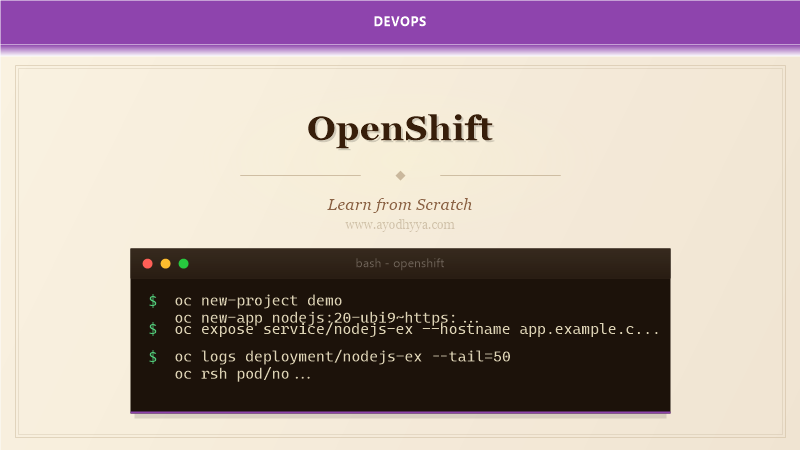
OpenShift is Red Hat's enterprise Kubernetes platform, and the first time I deployed an application on it, I realized how much Kubernetes leaves to the operator. OpenShift adds developer workflows, built-in image streams, route-based ingress, integrated CI/CD, and a web console that makes cluster operations approachable. It is Kubernetes under the hood — the same APIs, the same Pods, the same Deployments — but with guardrails and automation that reduce operational overhead. I have managed OpenShift clusters for financial services and healthcare organizations where compliance and multi-tenancy were non-negotiable. This tutorial covers OpenShift from getting started with CRC to deploying production workloads with Operators.
OpenShift Architecture and Red Hat OpenShift Local
OpenShift adds several components on top of bare Kubernetes: the OpenShift API server, Controller Manager, and etcd for control plane; Cluster Version Operator for updates; Marketplace Operator for catalog services; monitoring stack with Prometheus and AlertManager; and integrated logging with Loki. The web console is dramatically more feature-rich than standard Kubernetes dashboards — it lets developers deploy, monitor, and debug applications without touching the command line. To get started locally, Red Hat OpenShift Local (formerly CodeReady Containers or CRC) runs a single-node OpenShift cluster on your laptop. It requires 9 GB RAM and 35 GB disk but provides a full OpenShift experience. I use CRC for development and testing before pushing to shared cluster environments.
crc setup
crc start --memory 12288 --cpus 6
oc login -u kubeadmin -p $(crc console --credentials | grep kubeadmin | awk '{print $7}') https://api.crc.testing:6443
oc get nodes
oc get clusteroperators
Projects, Quotas, and Multi-Tenancy
OpenShift uses Projects instead of Kubernetes Namespaces — a Project is a Namespace with additional annotations and RBAC bindings. When a developer creates a project, OpenShift automatically sets up quotas, limits, and a dedicated service account. Resource quotas cap total CPU and memory per project. Limit ranges set minimum and maximum resource requests per Pod. OpenShift's multi-tenancy goes beyond Kubernetes: you can configure pod security policies, network isolation, and egress routers at the project level. I use the admin role for cluster administrators and the edit, view, and basic-user roles for developers. Self-service provisioning lets developers create projects within resource constraints without cluster admin involvement. Network policies are enabled by default and managed through the UI or YAML.
oc new-project myapp --display-name="My Application" --description="Production application"
oc describe quota myapp-quota
oc describe limitrange myapp-limits
oc policy add-role-to-user edit developer-user
oc get projects
Deployments, Builds, and ImageStreams
ImageStreams are OpenShift's abstraction over container image references. An ImageStream tracks image updates and triggers automatic deployments when a new image is pushed. This enables powerful workflows: a pipeline builds a new image, Tags it as latest in the ImageStream, and OpenShift automatically rolls out a new Deployment. The BuildConfig resource defines how to build images — from a Git repository using Source-to-Image (S2I), from a Dockerfile, or from a pipeline. S2I injects application source code into a builder image without writing a Dockerfile. I use S2I for standard language stacks and custom Dockerfiles for complex builds. DeployConfig is the OpenShift equivalent of a Kubernetes Deployment with added features like deployment triggers, lifecycle hooks, and automatic rollback on failure.
kind: BuildConfig
apiVersion: build.openshift.io/v1
metadata:
  name: myapp-build
spec:
  source:
    type: Git
    git:
      uri: https://git.example.com/myapp
      ref: main
  strategy:
    type: Source
    sourceStrategy:
      from:
        kind: ImageStreamTag
        name: nodejs:20-ubi9
  output:
    to:
      kind: ImageStreamTag
      name: myapp:latest
  triggers:
  - type: ConfigChange
  - type: ImageChange
Routes, Services, and Networking
OpenShift Routes are the primary way to expose services externally. A Route builds on a Kubernetes Service and provides a hostname, TLS termination, and optional path-based routing. The default HAProxy-based router runs as a Pod on the infrastructure nodes and handles incoming traffic. I configure routes with edge termination (TLS at the router), passthrough (TLS directly to the Pod), or re-encryption (TLS at router and again to Pod). For internal service-to-service communication, I use the built-in service DNS: service.namespace.svc.cluster.local. The OpenShift SDN supports three network plugins: OpenShiftSDN (original), OVN-Kubernetes (modern, default), and third-party options. OVN-Kubernetes provides network policies, egress firewalls, and IP address management. I prefer it for its performance and feature set.
kind: Route
apiVersion: route.openshift.io/v1
metadata:
  name: myapp-route
spec:
  host: myapp.example.com
  to:
    kind: Service
    name: myapp-svc
  tls:
    termination: edge
    certificate: |
      -----BEGIN CERTIFICATE-----
    key: |
      -----BEGIN PRIVATE KEY-----
  wildcardPolicy: None
Templates and Helm Charts for Application Lifecycle
OpenShift Templates are parameterized YAML files that define a set of resources to create as a single unit. A template can include Deployments, Services, Routes, BuildConfigs, and ImageStreams. When a developer instantiates a template, OpenShift prompts for parameter values and creates all resources. Templates are the original OpenShift application packaging format. In 2026, Helm is equally well-supported: OpenShift includes a Helm chart repository and integrates Helm into the Developer Console. I provide both template-based quickstarts for simple applications and Helm charts for complex microservice deployments. The Developer Catalog shows available templates and Helm charts that users can deploy with a few clicks. The Topology view visualizes all resources in a project as an interactive graph.
kind: Template
apiVersion: template.openshift.io/v1
metadata:
  name: nodejs-quickstart
parameters:
- name: APPLICATION_NAME
  description: The name of the application
  value: myapp
- name: SOURCE_REPOSITORY_URL
  description: Git source repository URL
objects:
- kind: Deployment
  apiVersion: apps/v1
  metadata:
    name: ${APPLICATION_NAME}
  spec:
    replicas: 3
    selector:
      matchLabels:
        app: ${APPLICATION_NAME}
    template:
      metadata:
        labels:
          app: ${APPLICATION_NAME}
      spec:
        containers:
        - name: app
          image: ${APPLICATION_NAME}:latest
Operators and Day 2 Operations
Operators are the key to managing complex stateful applications on OpenShift. An Operator is a controller that extends the Kubernetes API to manage a specific application — databases, message queues, monitoring stacks — as a Kubernetes-native resource. The Operator Lifecycle Manager (OLM) handles Operator installation, upgrades, and permissions. I install Operators from OperatorHub, which includes databases like PostgreSQL and MongoDB, stream processors like Kafka, and monitoring tools like Prometheus. Installing a PostgreSQL Operator lets developers create databases with a simple CRD: oc create -f postgres-cluster.yaml. Day 2 operations — scaling, backups, upgrades — are handled by the Operator. Cluster administrators use the web console to manage nodes, monitor cluster health, apply updates, and configure machine auto-scaling.
apiVersion: postgresql.k8s.enterprisedb.io/v1
kind: Cluster
metadata:
  name: postgres-cluster
spec:
  instances: 3
  storage:
    size: 10Gi
  backup:
    barmanObjectStore:
      destinationPath: s3://backups/postgres
      s3Credentials:
        accessKeyId:
          name: s3-creds
          key: access-key
        secretAccessKey:
          name: s3-creds
          key: secret-key
Frequently Asked Questions
How is OpenShift different from upstream Kubernetes?
OpenShift is Red Hat's enterprise distribution of Kubernetes with additional features: built-in image registry, integrated monitoring and logging, service mesh, serverless, a developer web console, security hardening with Security Context Constraints, and OperatorHub. OpenShift also adds Route resources, BuildConfigs, and ImageStreams that are not in upstream Kubernetes.
What are Security Context Constraints (SCCs)?
SCCs are OpenShift's equivalent of Pod Security Policies (which are deprecated in Kubernetes). They control which security features Pods can use — running as root, privilege escalation, host network access, volume types. OpenShift ships with restricted, anyuid, and privileged SCCs. I apply the restricted SCC by default and only elevate when specific workloads need it.
How does OpenShift handle persistent storage?
OpenShift integrates with any CSI-compatible storage provider. For on-premises, I use Red Hat OpenShift Data Foundation or a third-party CSI driver. For cloud, OpenShift automatically discovers and provisions storage from the cloud provider. Storage classes define performance tiers, and PersistentVolumeClaims request storage with specific access modes. Operators like the OpenShift Data Foundation Operator manage storage lifecycle.
What is Source-to-Image (S2I) and why use it?
S2I is a framework that builds container images from source code without a Dockerfile. It injects application source into a builder image that contains the runtime and build tools. S2I ensures consistent build processes across languages. While Dockerfiles give more control, S2I simplifies CI/CD for standard applications — commit code, and OpenShift builds and deploys automatically.
Originally published on Ayodhyyya. Last updated June 1, 2026.