Selenium Tutorial: Learn Test Automation from Scratch (2026)
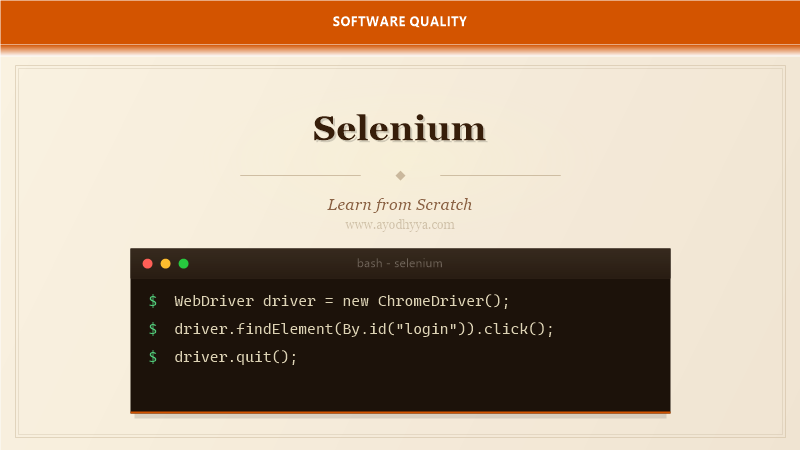
I still remember the first time I automated a login form with Selenium — watching the browser open, fill in credentials, and click submit on its own felt like magic. That was years ago, and since then, Selenium has become the backbone of browser automation across the industry. Whether you are looking to cut down manual regression cycles or build a robust CI pipeline, Selenium is the tool you will reach for.
In this tutorial, I will walk you through everything from setting up your environment to writing complex test suites. You will learn how to locate elements, handle dynamic content, and integrate with frameworks like TestNG. By the end, you will be confident enough to automate any web application you encounter.
Setting Up Selenium WebDriver
Before you can write a single test, you need to get the Selenium WebDriver binaries on your machine. The WebDriver is a browser-specific executable that Selenium uses to control the browser programmatically. For Chrome, you will need chromedriver; for Firefox, geckodriver.
I recommend using WebDriverManager, a library that handles binary downloads automatically. It saves you from version mismatch headaches. Add the dependency to your pom.xml, and WebDriverManager will fetch the correct driver version for your installed browser.
WebDriverManager.chromedriver().setup();
WebDriver driver = new ChromeDriver();
driver.get("https://example.com");
Locating Web Elements
Once the browser is open, your next job is to find elements on the page. Selenium provides eight locator strategies: id, name, className, tagName, linkText, partialLinkText, cssSelector, and xpath. In practice, I use CSS selectors and XPath the most because they handle complex DOM structures.
When an element has a stable id, use it — it is the fastest and most reliable. For dynamic pages where ids change, relative XPath or chained CSS selectors work better. Always prefer unique and stable attributes over brittle positional selectors.
WebElement searchBox = driver.findElement(By.name("q"));
searchBox.sendKeys("Selenium WebDriver");
searchBox.submit();
Working with Waits and Dynamic Content
Modern web applications load content asynchronously, which means your automation scripts must wait for elements to appear before interacting with them. Selenium offers implicit waits, explicit waits, and fluent waits.
I almost always use explicit waits with ExpectedConditions. They give you fine-grained control — you wait for exactly the condition you need, such as element visibility or clickability, without wasting time. Fluent waits add polling intervals and ignore specific exceptions, which is useful for flaky network conditions.
WebDriverWait wait = new WebDriverWait(driver, Duration.ofSeconds(10));
WebElement element = wait.until(
    ExpectedConditions.elementToBeClickable(By.id("submit-btn")));
Handling Alerts, Frames, and Windows
Real applications throw popups, embed iframes, and open new tabs. Selenium can handle all of these, but each requires a different approach. For JavaScript alerts, switch to the alert interface and accept or dismiss. For iframes, switch the driver context to the frame before interacting with its contents.
Window handles let you move between tabs or browser windows. Keep a map of window handles so you can switch back and forth. A common mistake is forgetting to switch back to the main frame after working inside an iframe — your locators will fail silently until you do.
driver.switchTo().frame("content-frame");
driver.findElement(By.id("inside-frame-btn")).click();
driver.switchTo().defaultContent();
Data-Driven Testing with Selenium
Running the same test with different data sets is a core testing practice. Selenium combined with TestNG or JUnit allows you to parameterize tests easily. You can feed data from Excel files, CSV files, JSON, or even a database.
I prefer using a DataProvider in TestNG with a separate utility class that reads test data from a JSON file. This keeps test logic and test data cleanly separated. When a new test scenario comes in, you simply add a new entry to the data file — no code change needed.
@DataProvider(name = "loginData")
public Object[][] getData() {
    return new Object[][] {
        {"user1", "pass1", true},
        {"user2", "wrong", false}
    };
}
Integrating Selenium with CI/CD Pipelines
Tests are most valuable when they run automatically on every commit. Integrating Selenium tests into a CI/CD pipeline ensures that regressions are caught before they reach production. Jenkins, GitHub Actions, and GitLab CI all support running Selenium tests inside containers.
When setting up headless execution for CI, use Chrome's headless mode or Xvfb for a virtual display. Make sure your CI node has the necessary browser binaries installed. Recording test execution with video can help debug failures that only happen in the CI environment.
ChromeOptions options = new ChromeOptions();
options.addArguments("--headless", "--no-sandbox", "--disable-dev-shm-usage");
WebDriver driver = new ChromeDriver(options);
Frequently Asked Questions
What is the difference between findElement and findElements?
findElement returns the first matching element and throws NoSuchElementException if nothing is found. findElements returns a list of all matching elements and returns an empty list if none are found, which is safer when you are not sure an element exists.
Why does my Selenium test fail on CI but pass locally?
The most common reasons are differences in browser version, screen resolution, network speed, or the absence of a graphical environment. Always run headless on CI and use explicit waits instead of Thread.sleep to handle timing differences.
Can Selenium automate mobile applications?
Selenium itself is for web browsers only. For mobile automation, you need Appium, which extends the WebDriver protocol to handle native and hybrid mobile apps on iOS and Android.
Is Selenium still relevant in 2026 with tools like Playwright?
Absolutely. Selenium has the largest community, broadest browser support, and most extensive ecosystem. Playwright offers some modern conveniences, but Selenium remains the standard for enterprise test automation due to its maturity and language support.
Originally published on Ayodhyyya. Last updated June 1, 2026.