Selenium WebDriver Tutorial: Learn Browser Automation from Scratch (2026)
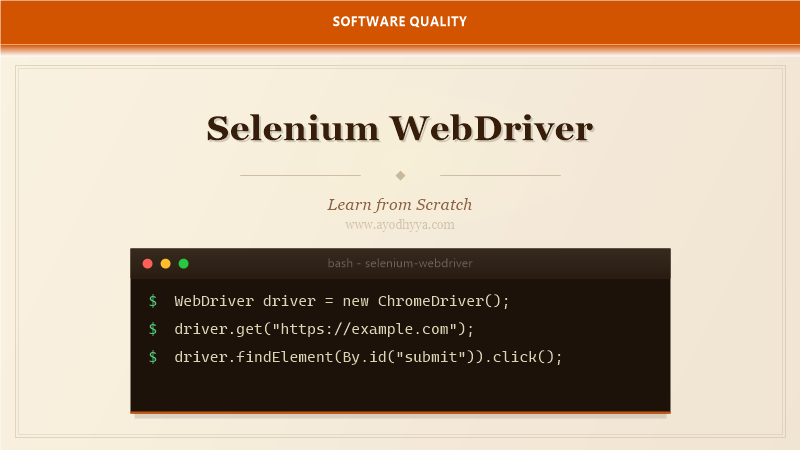
At the heart of every Selenium automation project lies the WebDriver — the API that lets you control browsers programmatically. When I moved from Selenium RC to WebDriver, the difference was night and day. No more Selenium Server, no more JavaScript injection tricks. Just clean, direct communication with the browser.
This tutorial dives deep into the org.openqa.selenium package. You will learn the architecture of WebDriver, how to orchestrate complex browser interactions, and how to build a maintainable automation framework from the ground up. This is the practical knowledge you need to automate any web application.
Understanding WebDriver Architecture
WebDriver uses a client-server architecture. Your test code is the client, sending commands via the JSON Wire Protocol (now W3C WebDriver standard). The browser-specific driver binary (chromedriver, geckodriver) receives these commands and translates them to native browser automation APIs.
This architecture means WebDriver is language-agnostic at the protocol level. The Java bindings implement the same RemoteWebDriver interface that Python, C#, and Ruby bindings use. When you understand the core interfaces — WebDriver, WebElement, By, and Wait — you can work with any browser on any platform.
ChromeOptions options = new ChromeOptions();
options.setBinary("C:\\Program Files\\Google\\Chrome\\Application\\chrome.exe");
ChromeDriver driver = new ChromeDriver(options);
String currentUrl = driver.getCurrentUrl();
Advanced Element Interaction
Beyond simple click and sendKeys, WebDriver supports complex interactions: double-click, drag-and-drop, hover, keyboard shortcuts, and file upload. The Actions class builds composite interaction sequences. For file uploads, use sendKeys on an element with the absolute file path — no need for native OS dialogs.
JavaScript execution via JavascriptExecutor gives you an escape hatch for cases WebDriver cannot handle natively, such as scrolling to an element, changing attributes, or interacting with shadow DOM. Use it sparingly — it bypasses WebDriver's waiting mechanisms and can introduce flakiness.
WebElement slider = driver.findElement(By.id("volume-slider"));
new Actions(driver)
    .clickAndHold(slider)
    .moveByOffset(50, 0)
    .release()
    .perform();
Managing Browser State: Cookies, Storage, and Navigation
WebDriver gives you full control over browser state. Manage cookies with driver.manage().addCookie(), .deleteCookieNamed(), and .deleteAllCookies(). For localStorage and sessionStorage, use JavascriptExecutor to get and set values.
Navigation is straightforward — driver.navigate().to(), .back(), .forward(), and .refresh(). When you need to wait for a page to load after navigation, WebDriver's get() blocks until the page's readyState is complete. However, single-page applications often update content without a full navigation, so explicit waits for specific elements remain necessary.
driver.manage().addCookie(new Cookie("sessionId", "abc123"));
driver.navigate().to("https://example.com");
driver.navigate().refresh();
Handling Advanced HTML Elements
Modern web applications use complex UI components: date pickers, autocomplete dropdowns, rich text editors, and modal dialogs. Each requires a specific interaction strategy. For date pickers, I clear the field first and then send keys in the expected date format.
Autocomplete widgets typically need a focus-and-wait pattern — send keys to trigger the suggestions, wait for the option to appear, then click it. For rich text editors, switch to the iframe or use JavaScript to set the innerHTML. Modals are just elements with higher z-index — locate and interact with them normally.
WebElement dateField = driver.findElement(By.id("datepicker"));
dateField.clear();
dateField.sendKeys("12/15/2026");
dateField.sendKeys(Keys.TAB); // trigger formatting
Page Object Model and Page Factory
The Page Object Model represents each web page as a class, encapsulating its elements and actions. This creates a clean separation between test logic and page structure. When the UI changes, you update one page object class instead of every test that touches that page.
Page Factory is a WebDriver support class that initializes page elements using @FindBy annotations. While convenient, I prefer explicit initialization in constructors because it is more transparent and does not hide lazy-loading behavior. Whichever approach you choose, the Page Object pattern is non-negotiable for any serious automation project.
public class LoginPage {
    private WebDriver driver;
    @FindBy(id = "username") private WebElement usernameField;

    public LoginPage(WebDriver driver) {
        this.driver = driver;
        PageFactory.initElements(driver, this);
    }

    public void login(String user, String pass) {
        usernameField.sendKeys(user);
    }
}
Building a Custom Automation Framework
Over time, I have evolved a standard framework structure: a DriverFactory with thread-safe browser instances, a BasePage with common methods (waitForElement, takeScreenshot), and a Utilities package for file handling, date formatting, and data generation. This framework layer sits between tests and raw WebDriver calls.
Configuration belongs in a properties or YAML file — browser type, urls, timeouts, and credentials. Use a ConfigurationManager singleton to load and cache these values. Add a RetryAnalyzer for flaky tests and a TestListener for logging and reporting. This framework shrinks test development time and makes failures easier to diagnose.
public abstract class BasePage {
    protected WebDriver driver;
    protected WebDriverWait wait;

    public BasePage(WebDriver driver) {
        this.driver = driver;
        this.wait = new WebDriverWait(driver, Duration.ofSeconds(15));
    }
}
Frequently Asked Questions
What is the difference between findElement and findElements?
findElement returns the first matching element and throws NoSuchElementException if none is found. findElements returns a List of matching elements, or an empty list if none match. Use findElements when checking for the existence of one or more elements.
How do I scroll to an element that is not visible?
Use JavascriptExecutor: ((JavascriptExecutor) driver).executeScript("arguments[0].scrollIntoView(true);", element). You can also use Actions.moveToElement(element) to scroll the element into view.
Can WebDriver automate mobile browsers?
Yes, through AndroidDriver and IOSDriver from the Appium project, which extend RemoteWebDriver. You can automate Chrome on Android or Safari on iOS using the same WebDriver API.
Why do I get StaleElementReferenceException?
This exception occurs when the element reference in your code no longer points to a valid DOM element — typically after a page refresh, DOM update, or navigation. Re-locate the element before interacting with it.
Originally published on Ayodhyyya. Last updated June 1, 2026.